Caddie Licence Activation

Easy Guide to activating your Caddie software licence.

Congratulations on the purchase of your Caddie software licence.

You should by now have received an activation email providing you with a link to the licence activation page, and the Product Key(s) for your Caddie licence(s).

If you have not received your email yet, then please check the Inbox for the email address you provided at the time of purchase, 'Clutter', 'Junk email' and/or Spam folders first, then contact This email address is being protected from spambots. You need JavaScript enabled to view it. for assistance if the email cannot be found.

Once you have located your Caddie licence activation email follow this three step guide to activate your Caddie licence.

1.Download the Caddie software

Before activating your free licence, you will first need to download and install the Caddie software program (otherwise you have nothing to activate).

Now that you have activated your licence(s), download the Caddie install file via the link below, saving the file to your ‘Downloads’ folder or other suitable file location:

   Download Caddie

2. Install the Caddie program

Once the download is complete, ‘Run’ the downloaded file to start the installation.

Follow the on-screen prompts, accepting the terms and conditions, and clicking the ‘Next’ buttons when prompted to continue.

Once the installation is complete, click the, ‘Finish’ button to close the install dialogue.

The Caddie software program is now installed on your computer.

3. Activate your Free Caddie licence

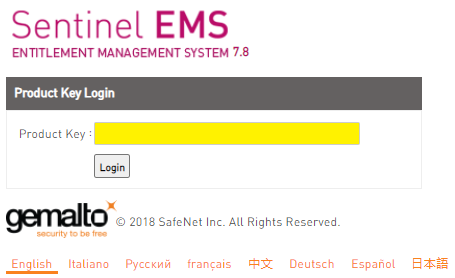
Follow the link to the licence activation page, https://licensing.caddiesoftware.net:446/ems/customerLogin.html

 Enter the Product Key included with the activation email into the Product Key field on the login dialogue (here shown yellow)

Then click ‘Login’ 

On the page that loads, click the, ‘Online Activation’ button to activate your Caddie licence.


For more information on activating your Caddie licence, watch the Caddie Licence Activation Video included below...


Further Links and Information

What's New Videos

The feature focus videos are a brilliant way to discover what's new in Caddie 26, displaying the functionality, many showing the new tools and features in real-world type scenarios, watch the videos HERE

Discover the new Caddie GIS Application
Along with a myriad of time saving new features, we are  please to announce a completely new Caddie Application available as an option with the Professional version.

The Caddie GIS App provides easy access to Geographic Information System (GIS) data covering, mapping, infrastructure buildings and roads, as well as details of local services, amenities, flooding, population and more.

Access data directly from sources including,

• Bing and Google Mapping

• OpenStreetMap

• Ordnance Survey

• And UK Government Data

Providing the unique ability to port GIS data directly into everyday Caddie .dwg drawings, the Caddie GIS is for those wishing to create informed and substantive designs without the need to invest in expensive alternative software and time-consuming data reformatting.


International Sales UK +44 (0) 1234 834920 email: This email address is being protected from spambots. You need JavaScript enabled to view it..uk
South Africa Sales SA +27 (0) 12 644 0300 email: This email address is being protected from spambots. You need JavaScript enabled to view it.
Online Training
 
Learn More...
Caddie Educational *FREE for Students and Educators
 
*Caddie Educational is FREE for Students and Educators at qualifying institutions (non-commercial use)
All trademarks acknowledged


Applies to

Caddie 17 build 2 and later

Question

How can I import a screen layout from a previous version of Caddie?.


Solution


Caddie 17 build 2 has a new direct import of screen layouts from Caddie 16. After installing Caddie 17 you will be asked if you want to migrate your settings from a previous version. If you select 'Yes', one of the options will be to import your screen layout.


If you have already been past this step and resplied 'No', you can get back to this option at any time by going to Utilities -> System -> Migrate Settings from Caddie 16.


Note that this option is only valid for importing settings from the previous major release of Caddie.


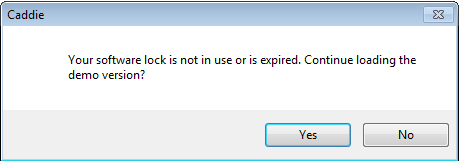
If a previously working Caddie says 'Softlock not in use, or is expired' there may be several causes.

Softlock_Not_In_Use


1. The softlocks are time limited and may have expired

2. Caddie may be unable to communicate with the softlock due to firewall issues etc. (Caddie requires port 1947 to be open)

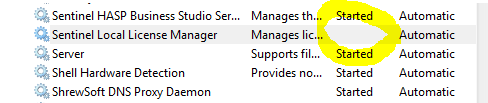
3. The Sentinel Hasp license manager may have stopped


To check if the licence manager is stopped, From the start menu type services.msc into the search box and the services dialogue should open. Scroll down to find Sentinel Local License Manager and ensure it is running. If not select it and click the Start option. Close the services dialogue and restart Caddie.


Softlock_Service


Alternatively, restart the PC and the license manager should be restarted automatically.


Applies To:

Caddie 16 onwards

Windows Vista, Windows 7

Question:

I try to save a screen layout and I get the message there is no layout to save. What is the problem?

or 

I try to import a screen layout, but nothing changes, why?

Answer:

This is usually only with a 64 bit operating system and is usually due to the security settings on your computer.

In order to save a screen layout or to import a screen layout, Caddie must be run as an administrator. To do this run Caddie by right clicking the Caddie launch icon from the Start | Programs menu and choose 'Run As Administrator'.

Note:

You can not do this from a pinned icon on the Quick Launch bar.


Applies To

No specific operating system or Caddie version

Question

When I download Caddie, which is a very large file, my connection sometimes breaks and I have to start all over again. I also have a very slow connection and I would like to speed this up and have the ability to break the download up into small chunks. Is there a way to do this.

Answer

Yes there is a way to do all of these things. What  you need is to download and install one of the many download accelerators or download managers. There are many available. Some have to be paid for, some have free limited use and some are totally free. Even the paid for versions usually have a free trail period. Some work standalone and some will be installed as add-ons for your favourite internet browser.

Which ever you choose they all will resolve the three main requirements.

Speed up the download time.

Whilst these programmes don't really speed up the download, what they do is to make more than one download connection  and split the download over these connections and reasemble it after the download. The net result is a faster download.

Restart the download without restarting from the beginning again

Because they way these accelerators work, they are able to recognise how much of the download has been made, so that in case of connection breaks, a restart will first check the position of the previous download and restart from that position. So in other words, if 80% had been downloaded then when a  download of the same file is down only the last 20% will need to be downloaded.

Pause the download

Similar to the last requirement, the download can be paused and then resumed at a later time.

In addition some will even send you computer to standby, hibernate or even shutdown, so you can leave it running and when it is finished downloading your computer will do what ever you have selected.

What one you use will be up to your personal preference.


Here are a couple to lookout for.


dap_header1

Speedbit home page

DAP can be integrated with various browsers such as Microsoft IE, Firefox, Google Chrome, Opera and Netscape.

This seems to be the web favorite.


flashget_51

IE6,IE7,IE8 and Firefox are supported


Internet Download Accelerator

For Google Chrome users there is this extension


NOTE

After a downloading check the size of the downloaded file matches what is stated on the Caddie site. If the size if different from that stated, i.e it is too small, it is probable due to a firewall not allowing access to the download. This can be rectified either by setting your firewall to allow your download manager to connect automatically or temporally  unblock you firewall.


ACS (Caddie) does not endorse any of these or other download accelerator products and therefore can not offer support for them. Please use the providers sites for support.