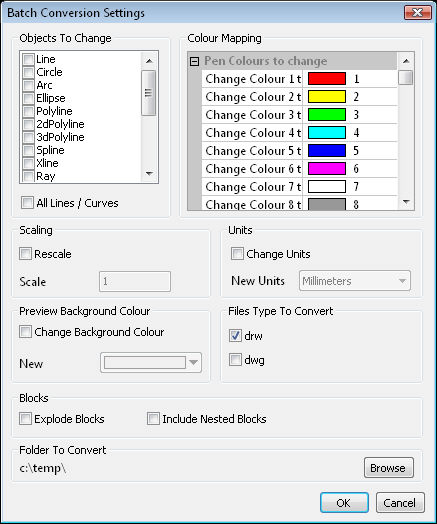
It is sometimes necessary to do a batch conversation of a whole folder of symbol previews. Maybe it is just the background colour that conflicts with the general pen used for your symbols. For instance, symbols drawn with pen 2 (yellow) are difficult to see if the background is white. This utility allows a "by folder" conversion of the background colour.
In addition you can also change the colours of the pens used. So for instance if the symbols in a folder use pen 3 (Green) for the lines in your symbols and you now have changed your pen scheme that requires the lines to use pen 2, you can use this batch utility to change all in the designated folder.
From UTILITIES in the top menu select BATCH and then CONVERT SYMBOL FOLDER OBJECT AND PREVIEW COLOURS.
Select which object types you want to change. Note there is a tick box which allows a quick selection of all lines & curves
Select the colour swatch of the pen you wish to change. A drop down window will now appear where you can select the replacement pen.
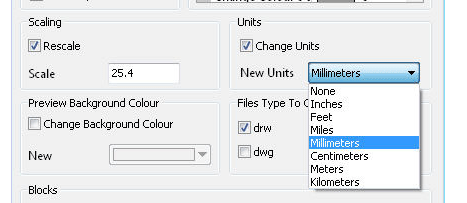
This is useful when you have acquired a folder full of symbols where the size and / or units used for the drawings are not in your usual form. Say for instance you downloaded a number of DWG symbols from the USA. These may well have been drawn in inches whereas your drawing units are typically mm. Of course what you will need to do is to do one of two things.
If you are lucky, the DWG symbol you imported had units assigned, in this case inches. If that is the case you do not need to scale the symbol as Caddie does the conversion automatically when importing a symbol (the scale selection needs to be on in the open symbol dialogue (see Insert a symbol). However it is likely that no unit type has been applied to the DWG symbol. In this case then we can leave the scaling of the symbol as it is an ensure the units are correct, in which case the insert symbol will handle it correctly. We could also do the scaling (in this case x25.4) and at the same time ensure the units are set to mm. Ensure you tick the required tick box otherwise nothing will change.
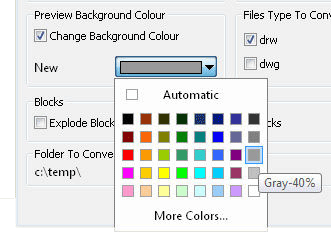
To change only the background colour of any existing symbol previews, tick the Change Background Colour box and from the colour drop down select the colour you want.
Ticking the "Explode Blocks" box will explode all top level block references. If you also want to explode the nested block references as well then tick the "Include Nested Blocks" box

Using the browse button choose which folder you want to convert.
Choose either or both file types to convert. The above conversion settings are only applied to the file types selected here.
.png)
Changing the colour of the background from this dialogue does not change the colour of any new symbol preview backgrounds. This is done from SETTINGS | DRAWING DEFAULTS
Exploding Blocks, only explodes any block references in the symbol drawing. The drawing will still contain the block information, which can be accessed by either opening the symbol as a drawing, or by using the component manager.
See Also
Pack Drawing
Drawing Defaults