The main window is divided into three columns. The central column is the folder view where you direct Caddie to the require symbol folder.
The right column shows that contents of the folder and if it is set to view thumbnails you will see the bitmap representation of the symbol. What you actually see for a given symbol will depend on how it was saved.
The colour of the bitmap background can be change when saving symbols, see Drawing defaults also the colour of the Open Symbol Dialogue can also be changed using the "Change Background Colour" drop down.
If you can't see any symbol images in the right pane then select thumbnails from the drop down as shown below.
.png)
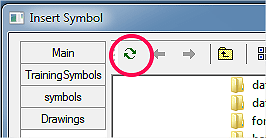
If symbols or folder have been added, during the current Caddie session, you may need to refresh the symbol library cache. This is done by selecting the refresh button at the top of the Open Symbol dialogue
When bringing a symbol into the drawing you may want to rotate it and two ways of achieving this are provided.
Set it to the required angle of rotation. A positive value rotates the symbol anti-clockwise and a negative angle rotates the symbol clockwise.
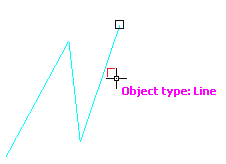
You can automatically rotate the symbol to match an existing line. Rather that measuring the angle of this line, just tick the 'Align' tick box. Now when the symbol is brought in you will be asked to indicate on the side of the line which indicates the angle. As a rule selecting the left of a line will rotate the symbol anti-clockwise and indicating the right of the line will rotate it clockwise.
In addition to these two methods you can also use "&Rotate" once the symbol is on your cursor ready to place into your drawing.
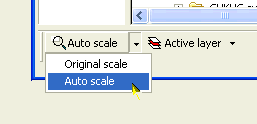
Symbol is in the original scale.
Caddie will disregard the unit value of the symbol and just use the number of the units using the drawings current unit value. For instance if the current drawing is set to a unit value of millimetres (mm) and the symbols unit value was 12 inches, or 12 feet, or 12 'no units', the placed symbol will have a new size equivalent to 12mm.
Scales the symbol to the current units of scale.
Caddie will use the unit value of the symbol and convert the number of units by using the drawings current unit value. For instance if the current drawing is set to a unit value of millimetres (mm) and the symbols unit value was inches and there were 12 units, the placed symbol will have a new size equivalent to 304.8mm (12 x 25.4). If the symbol doesn't have a unit value assigned, no conversion will be done and the result will be the same as using Original Scale.
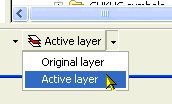
You can also select how layers are used when the symbol is place in your drawing.
Forces the symbol to be place on the active layer regardless of the layers the symbol was drawn on.
Will insert the symbol on all the layer that the symbol was created on. If the layer is nonexisting Caddie will add the missing layers.
Favourite groups and folders can be added the favourites list. You can not add favourites to the 'Main' group however you can create a new groups or groups. To do this just right click in the favourites area and select "Add New Group" and then rename it to your preferred name.
You can then proceed to add items to this folder. Ensure the folder you want to add favourites to is selected then using the middle column, navigate to the folder you want to add and select it. Right click in the favourites menu and select "Add Item for this folder" and then give it a name you want to use.
|
Don't forget to put reference symbols with the project they are intended for as if they are used by more than one drawing and they are modified all drawings that use the symbol will use the changed. reference symbol. |
Caddie Help Welcome
see also
Insert a symbol
Insert a referenced symbol
Drawing defaults
