 Translt Translt
Translate
Translate a selection
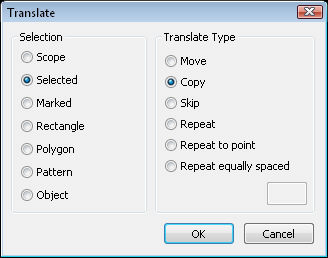
Choose what you want to scale from the selection dialogue. Choose if you want Proportional scaling or non-proportional scaling. As can be seen from the above pictures, the dialogue will change depending on the selection.
Move:
Moves the select ion from the first point to the second point.
Copy:
Moves a copy from the first point to the second point. The copy stays active
and so every subsequent click will place another copy. Choose OPTION |
END, or the keyboard Escape key or restart the command to stop the current
copy.
Skip:
Allows you to place a copy of the select to see what it is like. Every
time you click the screen it moves the placement to the new place. When
you are happy with the placement select OPTION | END. Escape will stop
any placement.
Repeat:
Repeats the first copy (distance and direction) the specified number of
times.
Repeat to Point:
Repeats a copy of a select. The distance and direction are indicated and
the position of the last copy is also specified. Caddie will copy the
select by the specified distance and direct enough times to reach the
indicated last position.
Repeat Equally Spaced:
Copies the selection to the last point with a maximum spacing which is
specified. The actual value of the spacing will vary, but will not exceed
the specified amount. This command is ideal for subjects such as balustrade
spacing so as to meet regulations, or roof tile copying where batten spacing
has to be a maximum but also has to fit a roof span.
You can use the & commands (&scale, &rotate and &mirror) at any time during this command.
All transformation and manipulation commands.
All the mark and unmark commands.
Standard Selection