Stretch
Stretch
StretchStretch all points selected with a rectangle or polygon of the current selection specified in the dialogue.
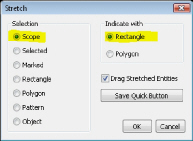
First Choose The selection required. All options apart from Scope will require further selection information (prompted in the command bar) once the dialogue has been closed
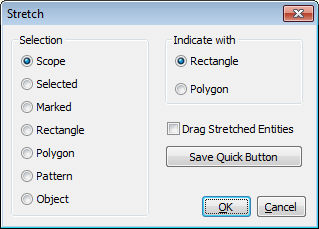
Choose what part of the drawing will be considered when the points are selected.
If set to scope, the whole active scope of the drawing will be used when making the point selection. If any other selection is used. only the current selection will be considered when indicating the points for selection
The points can selected with a rectangle or a polygon. Only the selected points that are in the Section Area and are currently active (see above) will be considered. All other points will be ignored.
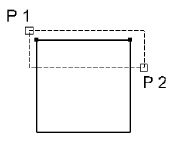
When the dialogue has closed (and selection has been done if required) indicate the two diagonal points for a rectangular area to be stretched
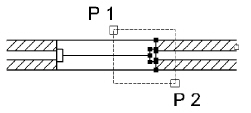
When the dialogue has closed (and selection has been done if required) indicate the points to create a polygon area for stretching
If ticked a rubber band effect will show the stretch. For a large number of object to be stretched this should be turn off.
When selected, the current settings will be applied to the Quick Stretch Command
Select the Stretch Command from TRANS
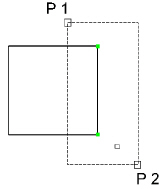
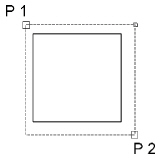
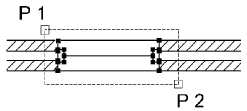
Select P1 & P2 |
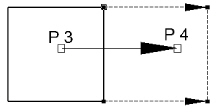
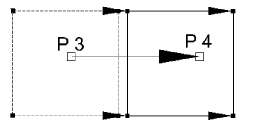
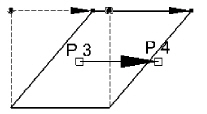
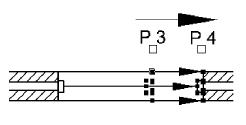
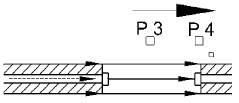
Select P3 and holding the TAB key select P4 |
|
|
Select
Stretch |
Select
P3 and holding then TAB key, P4 Select P3 and holding the TAB key, P4 |
|
Select P3 and holding the TAB key, P4 |
|
Select P3 and holding the TAB key, P4 |
Note: AEC objects are NOT affected by the stretch command
to stretch 3D objects use the
This command can alter the drawing drastically if the points indicated are not correct. Backup the drawing before any major changes. You can restrict the items to view with the SCOPE and layer and display commands on the context menu. Dimensions and hatch within the defined stretch area will be automatically updated.