 Scale Scale
Scale
Scale a pattern/element or group of patterns/elements which have been marked for manipulation.
Select on the dialogue box to Keep, Discard, Repeat or Skip the marked pattern(s) and/or element(s).
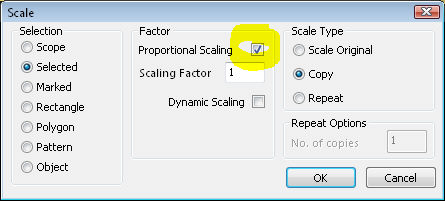
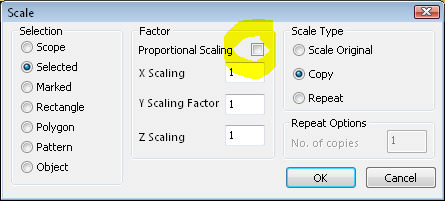
Choose what you want to scale from the selection dialogue. Choose if you want Proportional scaling or non-proportional scaling. As can be seen from the above pictures, the dialogue will change depending on the selection.
With proportional scaling selected, the value entered will change the x, y and z values by the same, entered value. If the proportional box is un-ticked you can change the x, y, and z values independently.
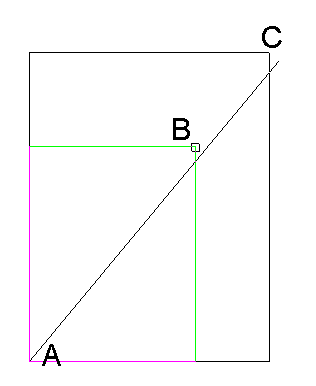
If proportional is checked you can "dynamically" change the scale value. If you have chosen a selection other then Scope or selected , you will be first prompted to make your selection. You will then be prompted "Indicate point about which to Scale?: " (A) then "Enter dragging base: " (B) and finally "Enter new location: " (C).
Scale Original: Doesn't copy the original
Copy: Scales a copy of the original
Repeat: Repeats the scaling the specified number of times
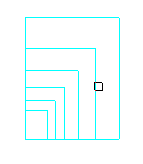
Illustrates a repeat of 5
You can use the & commands (&scale, &rotate and &mirror) at any time during this command.
All transformation and manipulation commands.
All the mark and unmark commands.
Standard Selection