.png)
You can check and alter the properties of one or more objects by using the right click context menu and selecting Object Properties.
Depending if or not anything is currently selected will depend on how the Object Properties tool will work.
Take the case where nothing is selected, after an Option End for instance.
You will now be require to indicate the object that you wish to view and or change the properties of. By just hovering over an object you will get an immediate on-screen indication of the type of object.
This is useful if you only want to know the object type without going into the main properties window. If you then require to go into the full available properties of the object displayed just left click the object.
|
|
If after using the on-screen selection you want to do a property check or modification, select the right click Option Properties tool and now you will be taken to the object properties dialogue. The first thing is at the very top. If you have only one type of object selected then the top window will indicate the type of object along with the number selected.
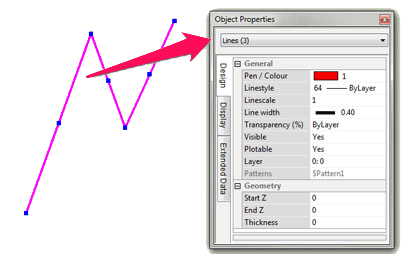
Because you have selected a number of objects, the dialogue will show a reduced number of properties. You can change the properties of all the objects in the same way as for a single object. However if the original object had different properties for the one you wanted to change then the new property will be for all the selected objects. Say the objects were (as shown) on different layers the layer would indicate *Various*. If a new layer was now selected then all the selected object would be moved to the new layer.
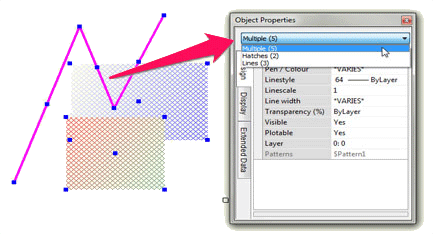
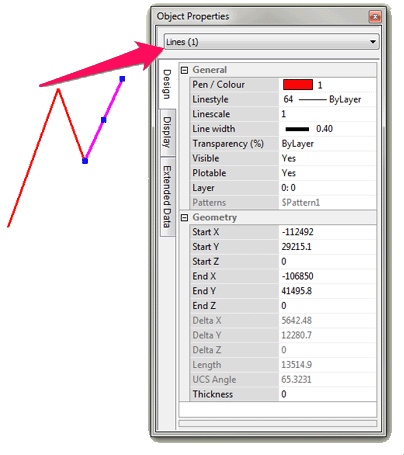
If more than one type of object is selected the properties dialogue would indicate the property type as Multiple and indicate the quantity of object types. You can either do, effectively a global, change of all the objects or you could select the object type to change. It will deselect those not selected but without leaving the dialogue box you could select a different object type and change the properties of that object. You can also you this method purely as a select filter tool. So for instance as in this case there are Hatches and lines selected the selection. The selection shows "Multiple". This can be changed lines only and the select would only be the lines - any previously selected object types being deselected.
.png)