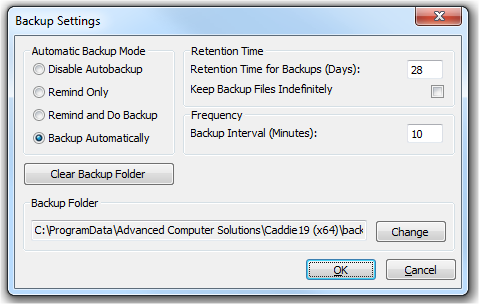
Caddie has a built-in feature whereby it can perform backups of drawings that you are currently working on. To access this feature, select the "Auto Backup Settings’ from the Settings menu. Caddie displays the"Backup Settings’ dialogue box.
no backups of drawings are performed.
|
It is strongly recommended NOT to work with the backup feature turned off. Power failures can occur and therefore necessitates the need to have some kind of backup of your work. There is nothing more frustrating than to lose work as a result of hardware or software failure and not having backups to restore from! |
A period of time specified by the frequency in the dialogue box (5 minutes in the example). Caddie will display a dialog box reminding when it is time to perform a backup. Caddie does NOT perform the backup.
Caddie displays a dialog box displaying the message:"Time to backup now’. You can then elect to perform a backup by clicking on"Yes’ or not by clicking on"No’.
Have Caddie perform a backup automatically without displaying a prompt dialog. This is done in the background whilst you work.
This tells Caddie the period of time you wish to retain a copy of backup files in the backup folder. This value is set in Days. By default, Caddie keeps the backup files indefinitely. Bear in mind that this can cause your backup folder to grow rapidly if you set your backup frequency to a low value and you work on multiple drawings. It is a good idea for you to perform a"Housekeeping’ of your backup folder through the Windows Explorer. Alternatively, if you are certain that you wish to delete all backup filed from the backup folder, you click on the"Clear Backup Folder’ button to have Caddie clear this folder for you.
Set the time, in minutes, between backups. Use careful judgment here to suit your style of working. By default, Caddie sets this value to 10 minutes. Remember that you can do major changes to a drawing in 10 minutes so you might like to reduce this to 5 minutes.
Caddie can perform a backup of a drawing whenever you are about to overwrite an existing drawing. This is useful if you mistakenly overwrite an existing drawing with undesired results. You can then retrieve the backed up version and re-save it with its original name. The drawing is saved using, the original name and path with an extension for the old drawing of .DR!. This is will be overwritten by the previous version to the one being saved.
Set the location of the folder where you want backups of your drawing to be saved. This can be on your local computer or a network drive but using the default Caddie folder is in most cases adequate. It is recommended that you set this to a folder on your local computer. These backup files need not necessarily be backed up further by means of your network backup system. In any case, this folder can grow considerably over a short period of time depending on the frequency you have set the backups to occur as well as the number of drawing you are working on at any given time. To change this setting, click on then"Change’ button and migrate to the desired new folder for the backup location.
Caddie uses a specific naming convention when making backups of drawings. Assume that you are working on a drawing that you have not yet saved. Whenever you create a new drawing, Caddie gives it the temporary name CaddieXXX, where XXX represents an auto-generated incremental number, this number starts at 1 so the first new drawing you create will automatically be name Caddie1. This information if visible in the title bar at the top of the screen.
[Caddie1]
|
Note: If you have started the drawing using a template the default (un-saved name) is Caddie10 and it does not increment when creating another template based drawing |
When you actually save the drawing, its name will replace this information and will appear in the title bar. Then it comes time to perform a backup of this drawing, caddie will name the backup file using the following naming convention:
yyyymmdd-hhmmss-DrawingName.drb
|
|
yyyy mm dd hh mm ss DrawingName drb |
The current year in four digit format The current month in two digit format The current day in two digit format The current hour in two digit 24 hour format The current minute in two digit format The current second in two digit format The name of the drawing being backed up The file extension used when saving a backup of a drawing |
From this information, an unsaved drawing with the name Caddie1 will be backed something like this:
20050329-135221-Caddie1.drb.
Lets say that you now save this drawing under the name
New Workshop.
The title bar would look like this:
Caddie - [New Workshop.dwg]
and a backup file name for this drawing would look something like this:
2005-143512-New Workshop