 Rescale
Rescale
RescaleResise the selection
This commands main job is to rescale all or part of a drawing.
A secondary function is to change the drawing units (modelspace units) at the same time.
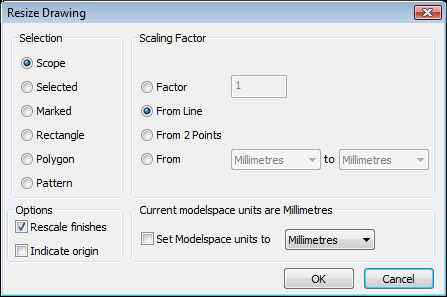
Choose what to rescale from the list of options. This command is based on the objects actually in the scope. In other words any objects hidden, by layer etc. will not be affected. All options other than scope will require further action once this dialogue is closed. Follow the instructions on the command line.
If ticked scaling also rescales the finishes, such as text, Hatch, Dimensions etc.
If ticked Caddie will ask for the origin to be specified of indicated. After scaling the drawing will be positioned in the drawing space with the indicated point set at the drawing origin.
Choose which method to calculate the scaling factor.
Enter the value of scale in the dialogue
When this dialogue is closed caddie will ask to indicate a line. It is assumed the correct length of this line is already known.
Similar to "from line" but two points will need to be indicated. It is assumed the distance between these two points is already known.
From one unit type to another. In other word if the drawing is in metres (from) and it is require in (to) millimetres
In all cases it is wise to check the final measurement using one of the measure commands.
This area of the dialogue only affects the designated unit to be used for the drawing. It is the same as going to MENU>SETTINGS>MODELSPACE WORKSPACE.
Changing the unit type does not change the scale of the drawing. You will also need to scale the drawing.
The current modelspace units are specified. If you require to change them then tick the box and specify what the new value should be.