Measure area/centre of gravity
Calculate the measurement of an area and indicate the centre of gravity.
Caddie will display the different methods of area measure. They are:
Endpoints, Inside, Intersection and Manual.
Use Endpoints to measure the area of a closed shape constructed only with endpoints, Inside to calculate the area of a shape formed by intersections and endpoints, Intersection to measure the area of a closed shape constructed only with intersections. Use the Manual option to calculate area measurement of any shape (the shape need not be closed) with or without islands.
Caddie will prompt you the indicate the element to start the auto trace. Indicate, clock-wise, the direction for the outline and the island or islands. Caddie will trace the elements from endpoint to endpoint (islands will be deducted) and display the area measurement in the keyboard buffer.
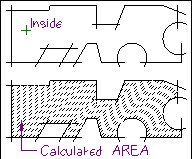
Indicate the outline area to trace inside and the islands. Caddie will trace the inside area of the shape, deduct the islands and display the calculated area measurement in the keyboard buffer. The area for the calculation must be enclosed, but can be formed by a combination of intersections and endpoints.
 Manual:
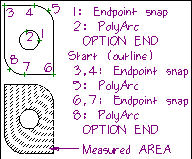
Define the outline and islands of the area manually. The defined island(s) will be deducted from the final calculation. Follow the shape of the island to be deducted point by point and select Option-End on the icon menu to end the island definition. After all islands have been defined, select the Start button to proceed with the final tracking. Use the appropriate snap modes for accuracy. Select Option-End to end the final outline tracking.
Where island exclusion is not required, select the Start command immediately and proceed with the shape identification. Select the PolyTrk or PolyArc buttons where arcs or circles form part of the shape.
After an area has been calculated, Caddie will place the cursor at the centre of gravity of the object.
The result of the measurement will be given in the keyboard buffer. You may use the keyboard keys such as insert and direction arrows to use the answer in subsequent calculation, or enter the information as part of the text input command.
The scale and unit setting will influence these calculations.